SEO for blog posts: the ultimate guide
You've written a blog post you're proud of, hit publish, and then... nothing. A handful of visits, mostly from people you sent the link to. SEO for blog posts comes down to a careful balance of data-driven technical and structural steps. It can be a bit intimidating if you don't know what you're doing, but luckily we're here to explain it all for you.
Google, and AI tools such as Google's AI Overviews and ChatGPT, try to match people's questions with useful answers. They weigh a lot of signals to decide which page is most useful. You don't need expensive tools to get those signals right, as long as you have a careful strategy and know what you're doing. Some tools are still worth having, free and paid, and we'll point them out as we go.
A single optimised post helps, but it's only one part of the story. Posts really work when they sit inside a broader content strategy that covers whole topic areas, so search engines come to trust your site on the subject.
How to do SEO for a blog post?
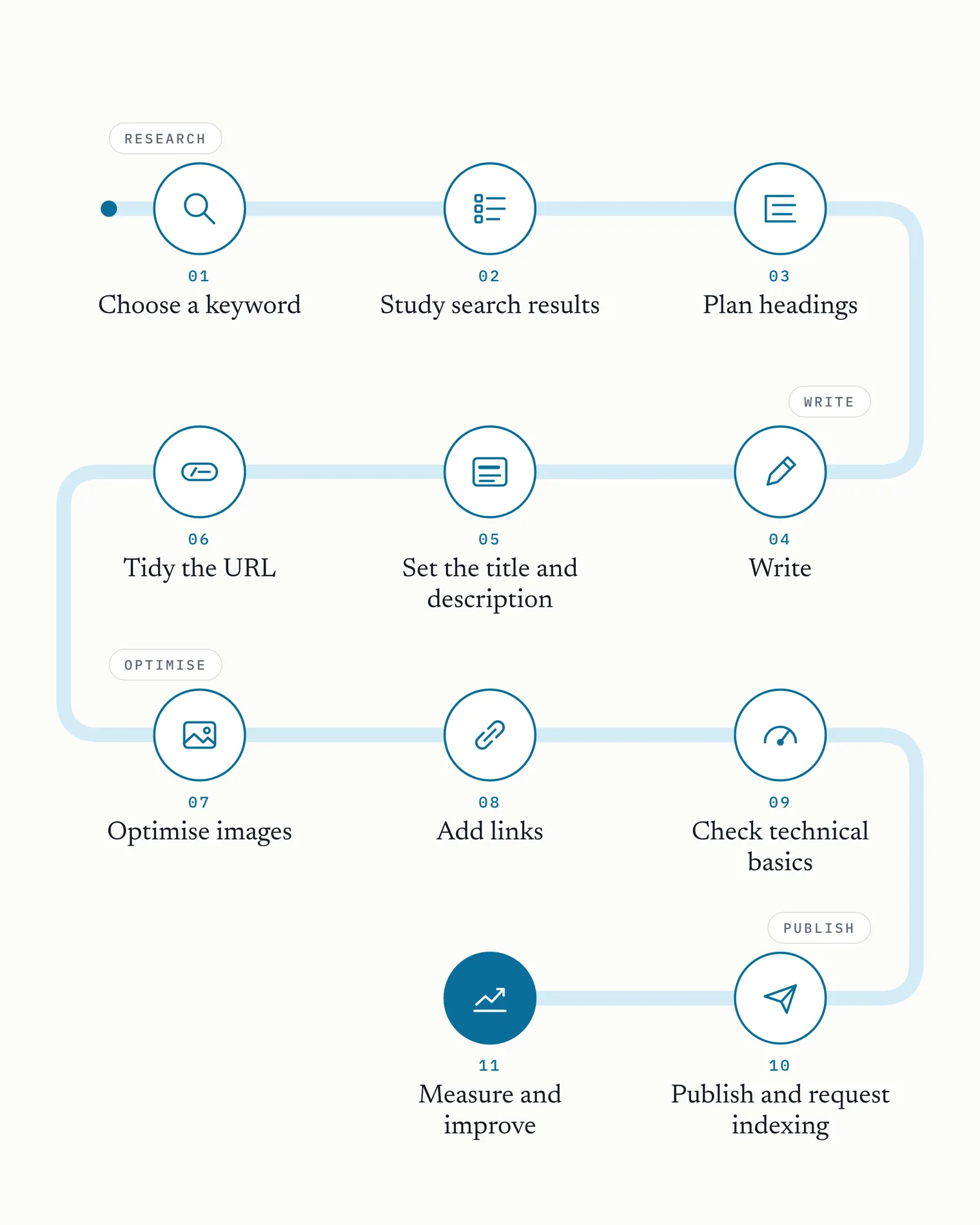
SEO for blog posts starts with choosing one search phrase and answering it clearly. Then make the post easy to read, give it a useful title and URL, add relevant links, check it works on mobile, and track what happens after you publish.
- Choose one main keyword.
- Study the pages that already rank for it.
- Plan your headings.
- Write the post, with the answer near the top.
- Set the title tag and meta description.
- Tidy up the URL.
- Optimise your images.
- Add internal and external links.
- Check the technical basics.
- Publish and request indexing.
- Measure and improve.
Are blog posts good for SEO?
Yes, blog posts can definitely help your site's SEO. They're a great place to answer the questions your target users search for, and to show how your product or service helps, especially with questions your product and service pages don't cover. That only works when they're done well: a useful answer, real experience, and the SEO basics in this guide. Publishing more posts that repeat what's already out there won't do much.
Take a company that sells a CRM for small agencies. Someone searching "how to keep track of sales leads" isn't ready to buy a CRM yet, but they're exactly the kind of person the company wants to reach. A clear, helpful post on tracking leads brings them to the site, where they get a sense of the brand and what it knows. With good on-page SEO and a content strategy behind it, the post can then guide them somewhere useful next: a lead tracking template, a related post, or a free trial once they're ready.
Step 1: choose one keyword for the post
A keyword is the phrase someone types into Google when they want what your post offers. Build every post around one main keyword. You'll rank for plenty of related phrases too, but one keyword gives the post a clear job.
- Think about the person you're writing for and the problem they have. Inside a CRM company, people talk about "pipeline management" and "lead scoring". The agency owner you're writing for probably doesn't search for those words. They search for the problem those features solve, such as "how to keep track of sales leads" or "how to remember to follow up with clients". Start from the problem and work backwards to your keyword.
- Go specific. Broad keywords like "CRM" are hard to compete for, because every CRM company wants them. Longer, more specific phrases, often called long-tail keywords, are a more realistic starting point, especially if your site is new. "How to track sales leads in a spreadsheet" is the kind of keyword a smaller site can actually rank for.
- Check the search intent, which is what the searcher is trying to do. The table below shows the four main types, and step 2 is how you check which one Google thinks your keyword has.
Match the search intent
Most blog traffic comes from informational searches: people at the top of the funnel, trying to understand something. The other types sit closer to a decision or a purchase.
| Intent | What the searcher wants | Example search | What to give them |
|---|---|---|---|
| Informational | To learn or understand something | "what is cold email" | A clear explainer, with real examples |
| Commercial | To compare options before choosing | "best CRM for small agencies", "CRM vs spreadsheet" | An honest comparison or round-up |
| Transactional | To buy, sign up or start a trial | "CRM free trial" | Your pricing or sign-up page, rather than a blog post |
| Navigational | To reach a particular site or page | A CRM's name plus "login" | The page itself, so not one to write a post for |
To rank, what you write and how you structure it need to match what the person is looking for. Say your keyword is "what is cold email". The searcher wants to understand cold email. If most of your post explains why they should buy your CRM, it doesn't match the intent: it isn't useful at the stage they're at, so Google is less likely to show it. Explain cold email properly, with examples, then mention how your CRM helps in a line or a short box near the end.
Use free tools to see what people actually search
- Google autocomplete: start typing your topic and look at the suggestions for possible search phrases.
- People also ask: note related questions from the results page. They can make useful headings.
- Google Search Console: if your blog has been live for a while, the Performance report shows searches you already appear for. Sometimes the best keyword is one you're nearly ranking for already.
- Google Trends: handy for checking whether a topic is growing or fading, and for comparing two ways of saying the same thing.
- Ahrefs' free Keyword Generator: type in a topic and it suggests related keywords and questions, each with an estimate of how many people search it a month. It's a good tool, even on the free version.
- AnswerThePublic: shows the questions people ask around a phrase, as a chart that branches out from your keyword. The free version gives you a limited number of searches.
- aych1's Strategy builder: give it your site's address and it analyses your site, works out who your buyers are, and pulls up the searches they actually make.
As you go, keep a spreadsheet of every keyword you check: the phrase, how many people search it a month, its intent, what's ranking for it, and whether you'll target it. It stops you checking the same phrase twice, and over time it becomes your list of posts to write.
Step 2: look at what's already ranking
Search your keyword in Google and look properly at page one. Google is showing you what it thinks searchers want.
- Check the format. Are the top results guides, lists, comparisons, recipes or product pages? SEO for blog posts won't help much if searchers want a shop page. You may need a different keyword.
- Note what they all cover. If a subtopic comes up in every result, readers expect it. Your post needs it too.
- Look for what's missing: out-of-date information, no real examples, a writer who has clearly never done the thing. That gap is your way in.
You're not copying anyone. You're working out the minimum a reader expects, so you can give them that plus something the others don't. aych1 runs this competitor gap analysis for you, so you can see what the ranking pages cover that your draft doesn't.
Step 3: plan your headings before you write
Draft your headings first. It sounds fussy, but it saves rewrites and handles much of the structural work in SEO for blog posts. If you're using AI to write your posts, as many people are, having it write the headings first helps a lot with quality control.
- Use one H1, your post title. Most blogging platforms set this automatically from the title field, so you usually don't add it yourself.
- Use H2s for the main sections and H3s for points within a section. The People also ask questions you saved in step 1 can make useful headings.
- Make headings describe what's underneath. Readers use them to skip to the bit they need, and search engines use them to understand each section.
- Put your keyword in at least one heading. Don't force it into all of them.
Step 4: write the post
After all this prep, you're probably itching to get to this part. There are a few important things to consider while you write.
- Answer the question early. If someone searched "how long to boil an egg", don't make them read about your grandmother's farm first. Give the answer in the first paragraph or two, then expand. Journalists call this the inverted pyramid: the most important information first, the detail after. It matters even more for AEO (answer engine optimisation), because Google's featured snippets and AI answers tend to quote a short, direct answer, and one near the top of the page is easy for them to find. Do it naturally, though. If the answer really needs a sentence of context first, add it, then get to the point.
- Use your keyword near the start, then write normally. A keyword works best when it belongs in the sentence. Repeating it everywhere reads badly and can tip into keyword stuffing.
- Give first-time visitors a reason to trust you. A short byline, a relevant sentence about your work, or a link to an author page if you have one can all help. Google's own guidance asks whether it's clear who wrote a page, so name the author, especially if they're a professional in the field. There's no need to put your whole business story before the answer.
- Match the post to the reader's next decision. Say you sell sales coaching. A beginner reading "what is cold calling" might want "how to write a cold calling script" next, and after that, a free consultation or your cold calling workshop. Someone choosing a supplier is further along: they need comparisons or a case study, and from there, your service or pricing pages.
- For local readers, include useful local detail. If your post targets a particular place, use it to stand apart. A gardener could explain planting choices for the area's soil, rather than adding town names to generic advice.
Show that you've done the thing
Google's guidance talks about "helpful content" and E-E-A-T: experience, expertise, authoritativeness and trustworthiness. In plain terms, was this post written by someone who knows what they're talking about, ideally from first-hand experience? Of the four, Google says trust matters most.
E-E-A-T isn't a score, and it isn't a single ranking factor. Google describes it as what its ranking systems look for through a mix of other signals, and it's what Google's human quality raters judge pages against when Google tests changes to search. So there's no box to tick. The post needs to show the real knowledge behind it.
That knowledge doesn't have to be the writer's own. If your business sells climbing gear, the person writing the post may never have climbed a sea cliff, but the business knows the kit inside out, and that counts. Draw on it: what customers ask about, which products come back and why, what your team uses themselves. If the author is a professional in the field, say so, and link to where readers can check, such as an author page or their LinkedIn profile.
You show it with specifics. Your own photos. What went wrong the first time you tried it. The exact setting, product, price or measurement. A real example beats a general statement every time, and it's the one thing a competitor can't lift from you.
Your Money or Your Life topics
Trust matters more on some topics than others. Google calls these "Your Money or Your Life" topics, or YMYL for short: subjects that could seriously affect someone's health, finances or safety, or the wellbeing of society. Think medical advice, investing, tax, legal questions or safety instructions. On these topics, Google's systems give even more weight to E-E-A-T.
That shouldn't put you off writing about them. It means the trust signals count for more: a named author with relevant credentials, sources for your claims, and clear information about who's behind the site and how to reach them. A CRM company's post on follow-up emails isn't YMYL. An accountant's post on tax deadlines for freelancers is, and the accountant's qualifications are exactly what readers, and Google, want to see.
Make it easy to read
Avoid run-on paragraphs, and keep paragraphs short where you can. Many people scan a post before they read it, or jump straight to the part they came for, so make that easy rather than handing them a wall of text. Clear headings in a proper hierarchy do most of the work. Then use lists when you're listing things, tables when information is easier to take in side by side (like the search intent table in step 1), an infographic when a process is easier to see than to read, and plenty of space between it all.
Preview the post on mobile before you publish: a paragraph that looks fine on your laptop can become a wall of text on a small screen.
How long should it be? As long as it takes to answer the question well. There's no magic word count. Look back at what you found in step 2: if every top result runs to 2,000 words because the topic needs it, 400 words probably won't cut it. Padding yours won't help.
Step 5: set the title and description
- Set your title tag, the headline Google can show in search. Optimisation tools such as aych1 can write it for you, or you can set it yourself, as in the example below. Aim for roughly 50 to 60 characters, with your keyword near the start. "How to track sales leads in a spreadsheet (free template)" follows that pattern, and it beats "Lead tracking: some thoughts from our team".
- Write the meta description. It's best known as the short description under your title on the SERP, the search results page. The meta description doesn't directly affect rankings, but it does affect whether people click. Google doesn't always use it: it often writes the snippet from your page text instead, to match what that person searched. In our experience, a meta description that answers the search directly is far more likely to be the one Google shows, so ask yourself what someone searching your keyword is trying to find out, and answer it. Keep it around 150 to 160 characters, and include the keyword where it fits.
If you set them yourself, both tags go in the head of the page's HTML and look like this:
<title>How to track sales leads in a spreadsheet (free template)</title>
<meta name="description" content="Track sales leads in a spreadsheet with five columns: name, source, stage, next step and follow-up date. Here's how to set it up, with a free template.">
Most website and blogging platforms, such as Webflow, Squarespace, Wix and Ghost, have search settings on each post that fill in these two tags for you. On self-hosted WordPress, you'll need a plugin to edit them. If you edit your site's code directly, paste them into the page's head.
Step 6: tidy up the URL
SEO for blog posts doesn't need a complicated URL. Your slug (the part after your domain) should be short, readable and include the keyword.
- Edit the slug your blogging platform builds from your title. Drop filler words like "the", "and" and "a" if it still reads fine.
- Check that it describes the post. yoursite.co.uk/blog/track-sales-leads-spreadsheet tells you what to expect before you open it.
- Set it before you publish. Once a post is live, try not to change its URL. If you have to, set up a 301 redirect from the old address so visitors and search engines reach the right page.
Step 7: sort out your images
Images are easy to forget when you're doing SEO for blog posts, but they affect it in two ways. The first is speed: large image files slow your page down, and Google takes page experience, including how quickly a page loads, into account. The second is visibility: a well-named image with good alt text can show up in Google Images, sometimes before the post itself ranks well. We've often seen a post that hadn't yet reached the top three of the search results with its image already first on the Images tab.
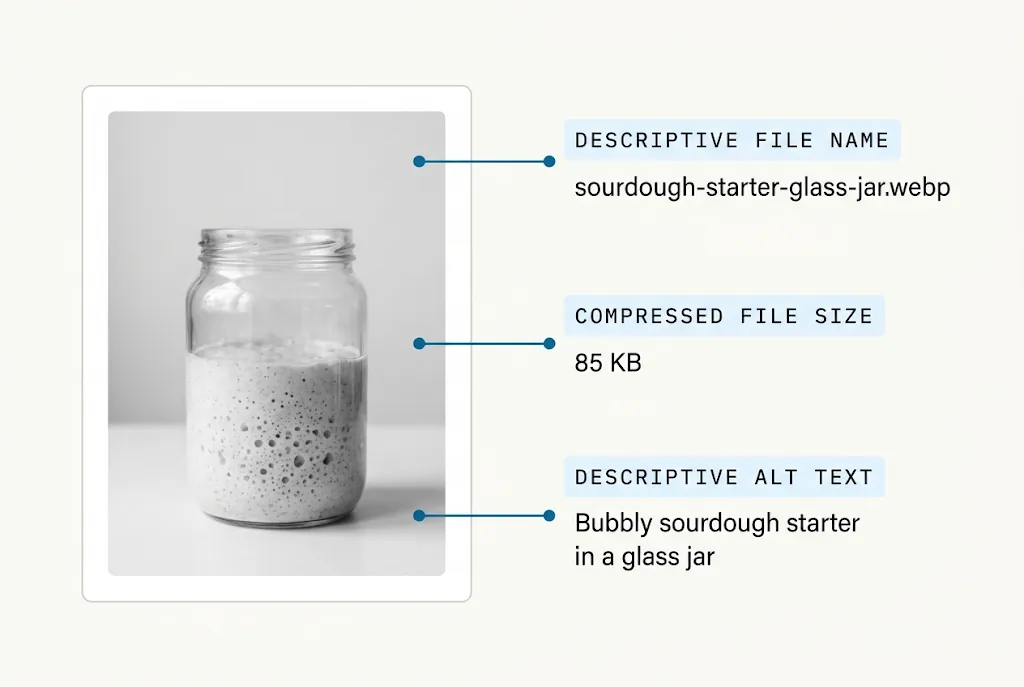
Three things to check on every image:
- Keep the file size down. Images from a camera, a stock photo site or an AI image tool are usually far bigger than a web page needs, because they're made at a quality you could print. On a screen, that extra size only slows the page. Save photos as WebP where your platform allows it, since it's usually lighter than JPEG or PNG at the same quality, then run each image through a free compressor such as TinyPNG or Squoosh. Check that the result still looks sharp and isn't pixelated: a blurry image makes the whole site look less trustworthy. As a rough guide, aim for under 200 KB per image.
- Give it a sensible file name: sourdough-starter-jar.jpg, not IMG_4482.jpg. A name like IMG_4482 tells search engines nothing about the picture, while a descriptive one is one more small clue to what it shows and what your page is about. File names also show up when someone saves or shares an image, so an odd one can look careless.
- Write alt text describing what's in the picture, for example "Bubbly sourdough starter in a glass jar after feeding". Screen readers read it aloud for people who can't see the image, and search engines use it to understand the picture, which helps it appear in image search. Include your keyword only if it fits naturally.
Step 8: add your links
Linking out to reputable sources, such as an official guideline, a study or a well-regarded website, helps readers and shows you've done your homework.
- Choose sources you'd be happy to stand behind. That rules out spam sites, and usually your competitors too: there's no reason to send readers to someone selling what you sell.
- Add external links where readers might want to check a claim or use a resource.
- Check each destination supports the words you've linked. If you link the words "Google's guidance on page titles", the page should be Google's guidance on page titles. Clear, descriptive link words are also one of the checks in Google Lighthouse, which flags vague ones like "click here".
Internal links
Internal links are links from one page on your site to another. They're worth taking time over, because they do several jobs at once. They help search engines find your pages and understand how they relate. They hold your topical clusters together, showing that you cover a subject in depth. And a page that's doing well can pass some of its strength to the pages it links to, as long as those pages are good and relevant themselves.
There are three kinds to use:
- Links on related words. If your post on tracking leads mentions follow-up emails, and you have a whole post on writing them, link those words to it. A link doesn't have to answer the reader's next question to be useful. It just has to help where it sits.
- Links that guide the reader along. These move a reader from a broad topic to a narrower one, or a step closer to buying: from "what is cold email" to "cold email templates" to your free trial. A guiding link deserves to stand out, in a short box or on a line of its own.
- Links to your business pages. When your product or service genuinely fits what the reader is doing, link to it, even in a post for people who aren't ready to buy yet. One box, like the aych1 one below, does more than a sales line in every paragraph.
To add them:
- Link from your new post to the related posts and pages it mentions.
- Go back to a few of those older posts and link to the new one. Links in both directions tie the cluster together, and a new post with nothing linking to it is harder to discover.
- Use descriptive anchor text (the clickable words). "How to write a follow-up email" tells everyone what's on the other side. "Click here" tells nobody anything, and it's one of the things Lighthouse flags.
Step 9: check the technical basics
This is the part people call technical SEO. You don't need to become a developer: these checks support SEO for blog posts across your whole site, and most take a few minutes.
Check it works on your phone
Google crawls and indexes the web the way a phone sees it. That's mobile-first indexing: Google mainly uses the mobile version of your page to decide whether to index it and how to rank it, and since July 2024 that's been true of every site. A site that doesn't work on a phone can drop out of Google's index altogether.
So as far as Google is concerned, what readers see on a phone is your page. If something only shows on the desktop version, such as a table or a section hidden on small screens, Google may not count it. Open your post on your phone. Can you read it without zooming, tap the links easily, and see everything you'd see on a laptop?
Run a speed test
Run your post through Google's free PageSpeed Insights. It shows how quickly the page loads on phones and computers, and what's slowing it down. Don't chase a perfect score. If it flags large images (it usually does), go back to step 7.
Check HTTPS
Your address should start with https:// and show a padlock in the browser. It means the connection to your site is encrypted. Browsers warn visitors about sites without it, and Google uses it as a light ranking signal. Most hosts include it for free. If yours doesn't, ask them.
Check search visibility
Some platforms have a setting that hides your site from search engines. On WordPress, for example, it's under Settings > Reading, labelled "Discourage search engines from indexing this site". People leave it ticked after launch more often than you'd think, so check it's off.
Step 10: publish and get indexed
Hit publish. SEO for blog posts doesn't stop there: help Google find the post rather than waiting for it to stumble across it.
- Go to Google Search Console and add your site, if you haven't already. It's free, and it's where Google shows you how your site is doing in search, so it's worth setting up for every site you run.
- Submit your sitemap. Open Sitemaps in the left-hand menu, enter your sitemap's address and click Submit. Most platforms create this file for you, often at yoursite.co.uk/sitemap.xml. You only need to do this once.
- Ask Google to index the post. Paste the post's address into the URL inspection bar at the top of Search Console, then click Request indexing.
Then set up Bing Webmaster Tools as well. Bing's index feeds other services, including AI search tools such as Microsoft Copilot, so being in it helps you show up there too. You don't have to start from scratch: Bing lets you import your sites from Google Search Console in a few clicks.
Step 11: check how it's doing, then improve it
Like most good things, SEO takes a little time. Results build over weeks and months rather than days. As a rule of thumb, especially on a newer site, give a new post two weeks to a month before you judge how it's doing. Then:
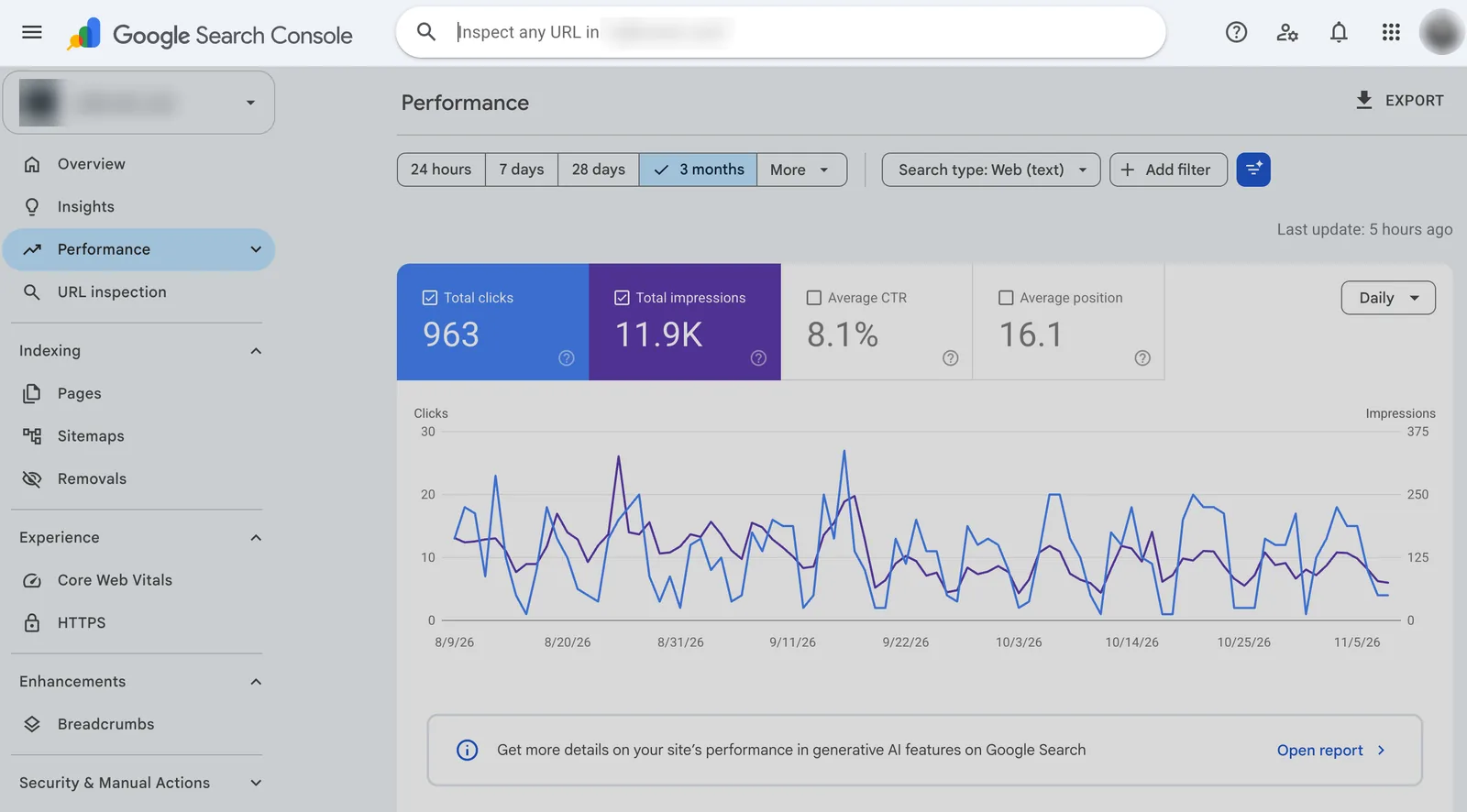
- Open the Performance report in Search Console. Click Add filter, choose Page and enter your post's address, so you only see its figures.
- Set the date range. The buttons along the top run from 24 hours to 3 months, and More goes back up to 16 months, so you can see how a post behaves over time.
- Look at the searches. The Queries tab shows what people actually typed to find your post, which is often a phrase you didn't plan for.
- Watch the average position. Over time, you want to see it climb. A post sitting around positions 8 to 20 is close to page one, and clearer answers, fresher examples or a few internal links can help it the rest of the way.
- Compare impressions with clicks. Impressions are how often your post appeared in someone's search results. Clicks are how often they chose it. Average CTR (click-through rate) is the share of impressions that became clicks.
If you're using a tool like aych1, go to the Strategy builder and check your cluster to see how each search term is performing.
What the numbers tell you
Measuring tells you when to refine. Lots of impressions but few clicks usually means something is putting searchers off before they reach you.
It might be that your post doesn't match what they're looking for. You're showing up, but your title and meta description tell them the post won't solve their problem. Look at what ranks above you and how those pages answer the search, then bring your post, or its title and description, closer to what searchers want.
Or it might be something in your search result. A post on "best AI SEO tools" that shows "November 2024" looks out of date, so people skip it, even if the advice inside still holds. If a post is evergreen, consider leaving the date off.
Search Console stops at the click. If you have analytics set up, time on page shows whether readers stay once they arrive.
Make useful improvements, then check again later. A simple spreadsheet of each post's position and clicks, updated once a month, makes trends easy to spot.
Common mistakes to avoid
Keyword cannibalisation. Writing several posts for the same intent. "Best CRM for small business", "top CRMs for small businesses" and "small business CRM guide" may end up competing with each other. If they answer the same question, merge them into one post and redirect the others to it.
Chasing big numbers too early. Free tools like the ones in step 1 show how many people search a phrase each month, and it's tempting to go after the biggest. A keyword with 50 searches a month that you can actually rank for is worth more than one with 50,000 that you can't. If page one is all household names, start with something more specific.
Writing for Google instead of people. SEO for blog posts should make your answer easier to find and use. If a sentence only exists to squeeze a keyword in, cut it. Readers can tell.
Your checklist for every post
Once your strategy is set, these are the checks to repeat on every post.
Before you publish:
After you publish:
FAQ
What is the 80/20 rule for blogging?
The 80/20 rule for blogging is the idea that roughly 20% of your activities may produce about 80% of your results, such as traffic, leads or sales. It is a prioritisation guide rather than a fixed calculation, so use your own performance data to identify which topics and promotion methods matter most.
Can ChatGPT do SEO?
ChatGPT can support SEO by suggesting topics, organising outlines, drafting titles and descriptions, and identifying questions a post should answer. It cannot guarantee rankings, replace first-hand expertise or verify every claim, so review its suggestions against search results, reliable sources and your own experience.
What is an H1 in SEO?
An H1 is a page's main heading, marked in the page's HTML with an <h1> tag. Headings run from H1 to H6: the H1 is the title, H2s mark the main sections and H3s the points within them. Search engines read headings to understand what a page is about and how its parts relate, so one clear H1 that matches the topic is a good start. Most blogging platforms turn your post title into the H1 for you.
What is keyword stuffing?
Keyword stuffing is repeating a keyword so often, or in such unnatural places, that the text reads badly: the same phrase in every sentence, long lists of town names, or words hidden from readers. Google's spam policies name it as a practice that can push a page down the results or out of them. Use your keyword where it belongs, and write the rest naturally.
What does SERP stand for?
SERP stands for search engine results page: the page you see after you search, with its list of results and anything else the search engine shows there, such as ads, People also ask questions, images or an AI answer.
What is a 301 redirect?
A 301 redirect permanently sends anyone who visits an old address, people and search engines alike, to a new one. Search engines take it as a sign the page has moved for good, and generally pass its standing in search on to the new address. Most website platforms let you set one up in their settings, and some add one automatically when you change a post's address.
What is Google Lighthouse?
Lighthouse is Google's free tool for checking the quality of a web page. It scores a page on performance, accessibility, best practices and SEO, and lists what to fix, such as oversized images or links with vague words like "click here". You can run it from the developer tools in Chrome, and PageSpeed Insights uses it too.
What is a topical cluster?
A topical cluster is a group of pages on one subject, linked to each other: usually one broad page, often called a pillar page, and several narrower posts around it. For a CRM company, that might be a guide to managing sales leads, linked with posts on lead scoring, follow-up emails and tracking leads in a spreadsheet. Covering a subject in depth, with the pages linked together, helps search engines see your site as a good source on it.